If you want your NFC card to open your digital business card through an editable online profile, a practical method is to write your public card URL into the NFC chip. This keeps the NFC card simple while your online profile stays flexible and easy to update.
Instead of storing full contact details, raw text, or a static vCard, you store one live link. When someone taps your NFC card, their phone opens your hosted Digiting Card profile in the browser.
From that page, the person can call you, save your contact, open WhatsApp, visit your website, view your location, or check your business details.
Quick answer
To write your digital business card URL to an NFC card, open NFC Tools, choose Write, add a URL / URI record, paste your public card link, tap Write, and hold the NFC card near your phone until writing is complete.
Example card URL
https://digitingcard.com/card/your-card-url
Why a URL is useful for an editable profile
Writing the public profile URL keeps the NFC tag focused on one destination for an NFC visiting card. The NFC chip only needs to store one instruction: open your digital business card link.
This means your real business details stay on your Digiting Card profile. If your phone number, services, photo, address, or social links change later, you update the profile online. You do not need to rewrite or replace the NFC card.
- Your NFC card stays simple and lightweight
- You can update your digital card later without rewriting the NFC card
- A compatible phone can be prompted to open your digital business card URL
- You can use one live profile for NFC, QR code, WhatsApp, and direct sharing
- A URL is easier to keep current than duplicating changing contact details on the tag
What you need before writing the NFC card
Before you start, make sure your digital business card is published and the public URL opens correctly in a browser. Writing a broken or private link will make the NFC card feel like it is not working.
- An NFC-enabled phone that supports writing NFC tags
- An NFC card or NFC tag
- The NFC Tools app installed on your phone
- Your public digital business card URL
- A published card link that opens correctly in the browser
Exact example to write
In NFC Tools, after selecting URL / URI, paste only your public card URL. It should look like this:
https://digitingcard.com/card/your-card-url
That is all you need to write. Do not paste your full business profile, all contact details, or long raw text into the NFC card.
Step-by-step: how to write your digital business card URL in NFC card
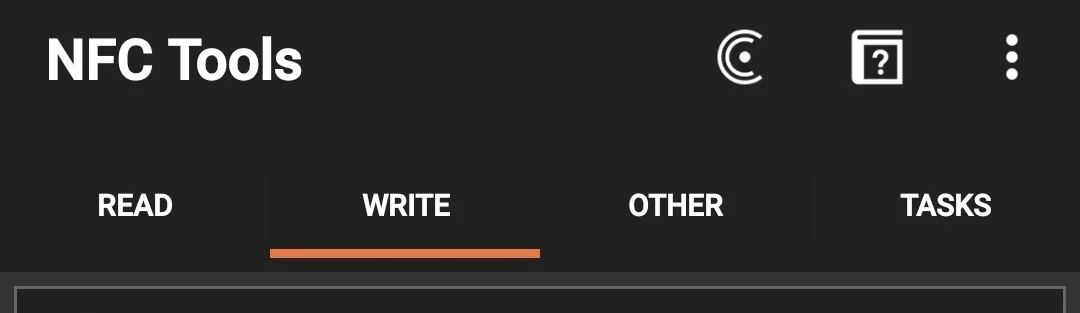
Step 1: Open the Write tab in NFC Tools
Open the NFC Tools app and go to the Write section. This is where you prepare the data before writing it to the NFC card.
Step 2: Tap Add a record
Inside the Write tab, tap Add a record. This lets you choose the type of information you want to store on the NFC card.

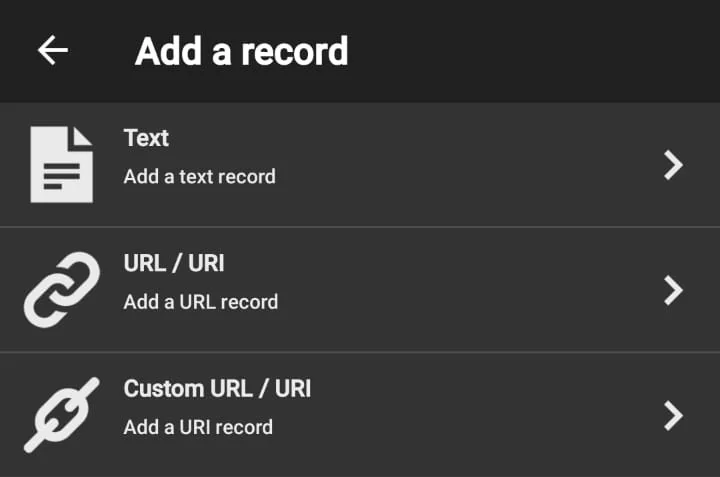
Step 3: Select URL / URI
Choose URL / URI. This is the correct option because your NFC card should open your digital business card in the browser.
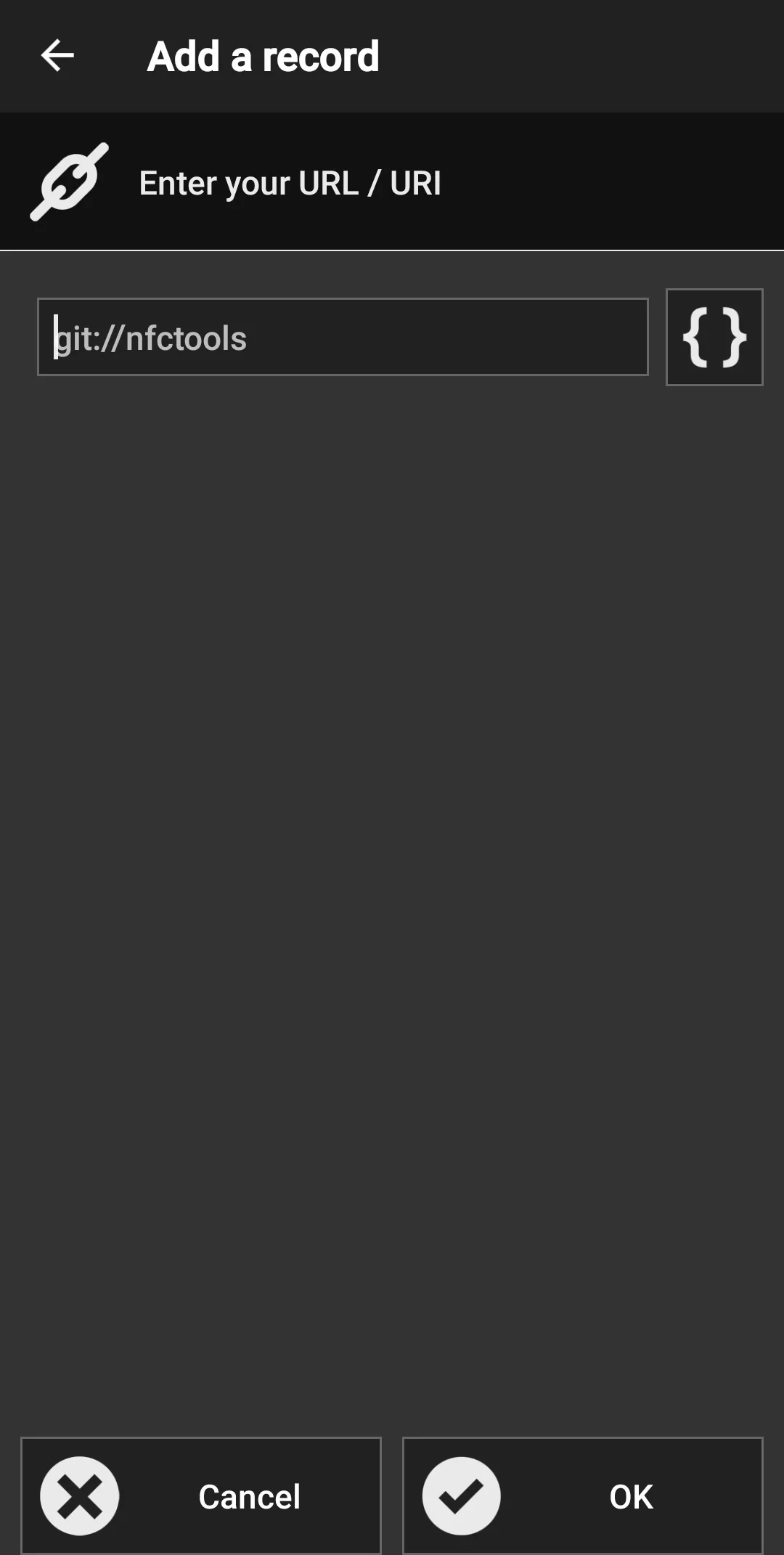
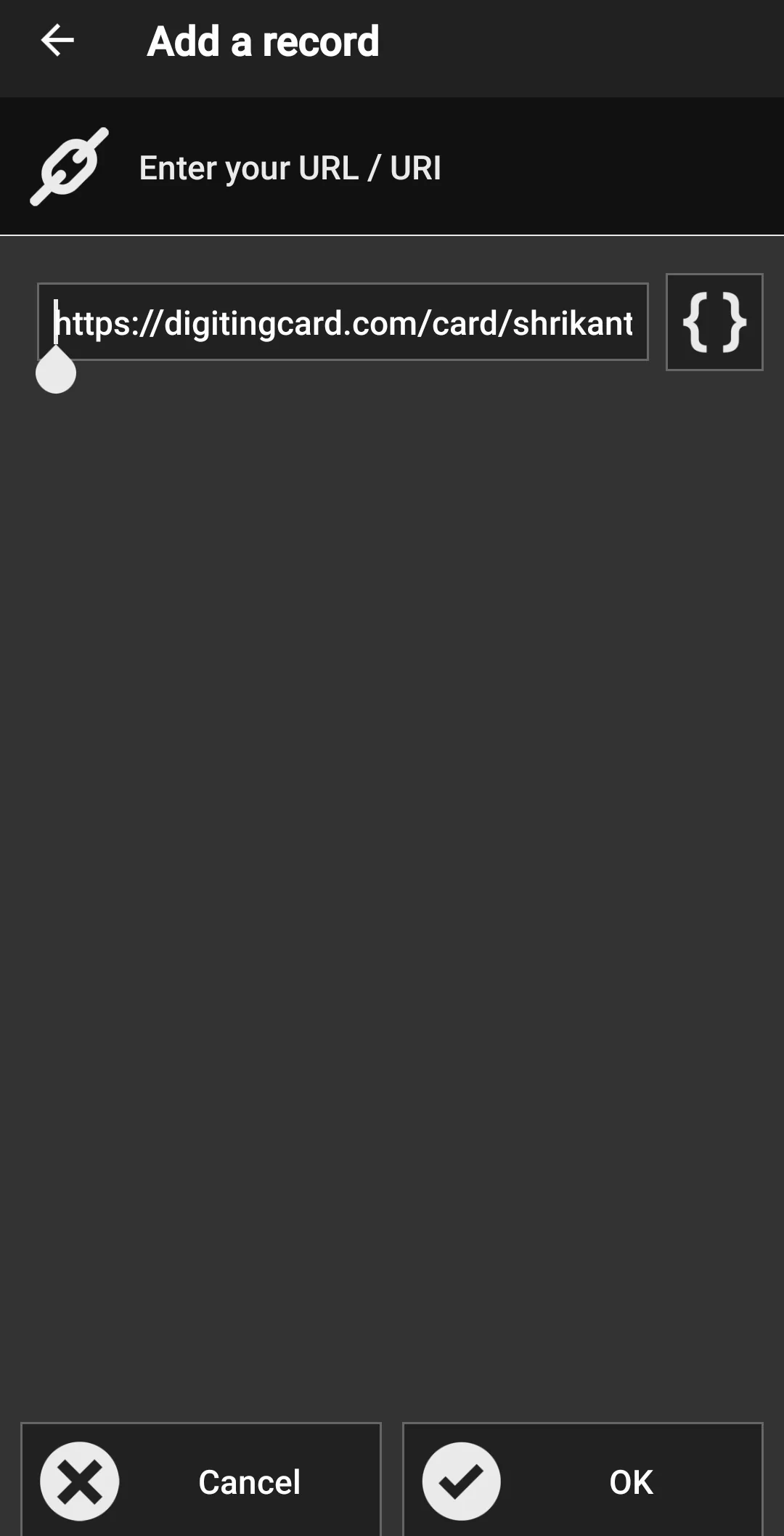
Step 4: Paste your digital business card URL
Paste only your public Digiting Card link. Do not paste full contact details, plain text, or a full vCard if your goal is to open your online profile.
Step 5: Confirm the URL record
After entering the link, save the record so it appears in the write queue. This confirms that the NFC card will store a URL record.
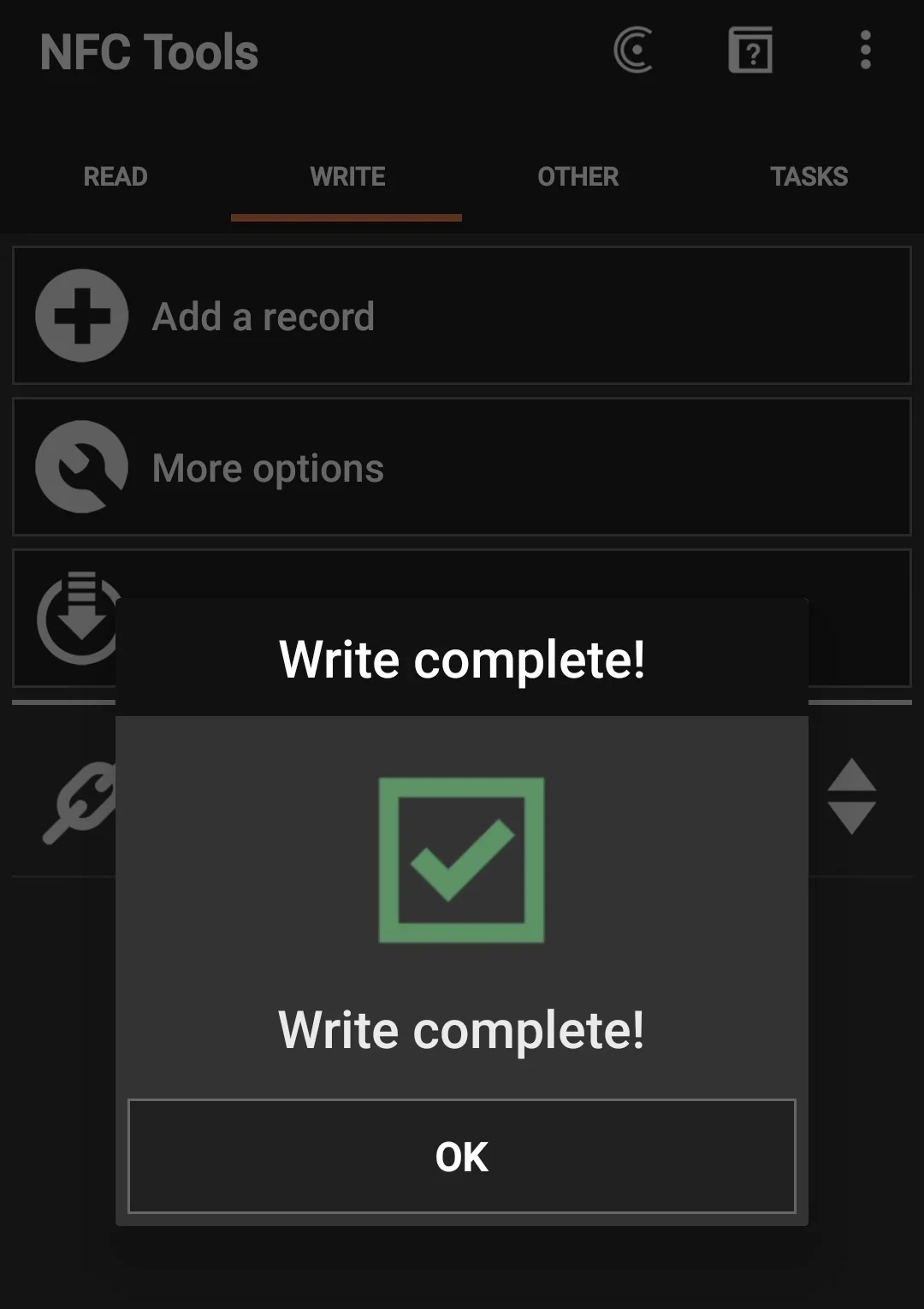
Step 6: Tap Write and touch the NFC card
Press Write and bring the NFC card close to your phone. Hold it steady until the writing process completes successfully.
What happens after someone taps the NFC card?
Once the URL is written correctly, the user flow becomes very simple. The NFC card acts like a shortcut to your online profile.
Tap NFC card → Open browser → Load digital business card → Take action
This is useful when your hosted card page can include all business actions in one place: WhatsApp, call, save contact, website, location, social links, products, and services.
Testing checklist after writing the NFC card
Do not lock or distribute the NFC card before testing it. A small testing step can prevent customer-facing mistakes later.
- Test the NFC card on your own phone first
- Test it on another phone if possible
- Confirm that the card opens in the browser
- Check that your call, WhatsApp, save contact, and website buttons work
- Update your digital profile first, then test the NFC card again
Mistakes to avoid
- Do not write plain text if your goal is to open a webpage
- Do not write the full vCard unless you specifically want static contact data
- Do not use a private, draft, or temporary URL
- Do not lock the NFC card before testing it properly
- Do not use a broken or unpublished card link
- Do not paste extra spaces before or after the URL
Using the same URL with Digiting Card
With Digiting Card, your NFC card does not need to store everything. It only needs to store the URL of your live digital profile.
This means one digital profile can work across NFC, QR code, WhatsApp sharing, printed cards, social media, and direct links.
- Update your profile anytime
- Use one card for NFC, QR code, and direct sharing
- Give visitors supported save-contact, call, or message actions
- Keep offline networking connected to your online profile
Not sure whether you need NFC?
QR and NFC can point to the same public profile. Choose based on where the handoff happens and keep QR available when you need a visible fallback.
Compare NFC and QR sharingFinal recommendation
If your goal is to make an NFC business card work properly, do not overcomplicate it. Write only your public digital visiting card URL to the NFC card. A link like https://digitingcard.com/card/your-card-url is enough to make the card smart, flexible, and easy to update.
Frequently asked questions
What should I write on an NFC business card?
If your goal is to open an editable online profile, store its public URL as the NFC record. If your only goal is static contact exchange, another record type may fit better.
Should I write a URL or full contact details to the NFC card?
Write the URL if you want a flexible smart business card. A URL lets you update your profile later without rewriting the NFC card. Full contact details are static and harder to update.
Can I update my details after writing the NFC card?
Yes. If your NFC card stores only your Digiting Card URL, you can update your profile details online anytime. The NFC card can keep using the same link.
Why is my NFC card not opening the digital business card?
The most common reasons are a broken URL, an unpublished card page, incorrect NFC record type, NFC being disabled, or the card not being written correctly.
Do I need an app to open the NFC card?
The person tapping your NFC card usually does not need an app. If the NFC card stores a URL correctly, the phone should open the link in the browser.
Create your NFC-ready digital business card
Create your card, copy the public URL, write it to your NFC card, and let every tap open your professional profile when the phone, tag, and device settings support the interaction.