Sharing contact details manually is slow and easy to forget. A digital business card solves this by giving you one mobile-ready profile that people can open through a link, QR code, WhatsApp message, or social media bio.
Whether you are replying to a WhatsApp inquiry, meeting a new customer, attending an event, or sharing your profile online, a digital card helps people call, message, save, or understand your business faster.
In this guide, you will learn how to create a digital business card that is simple, clear, mobile-friendly, and useful in real business situations.
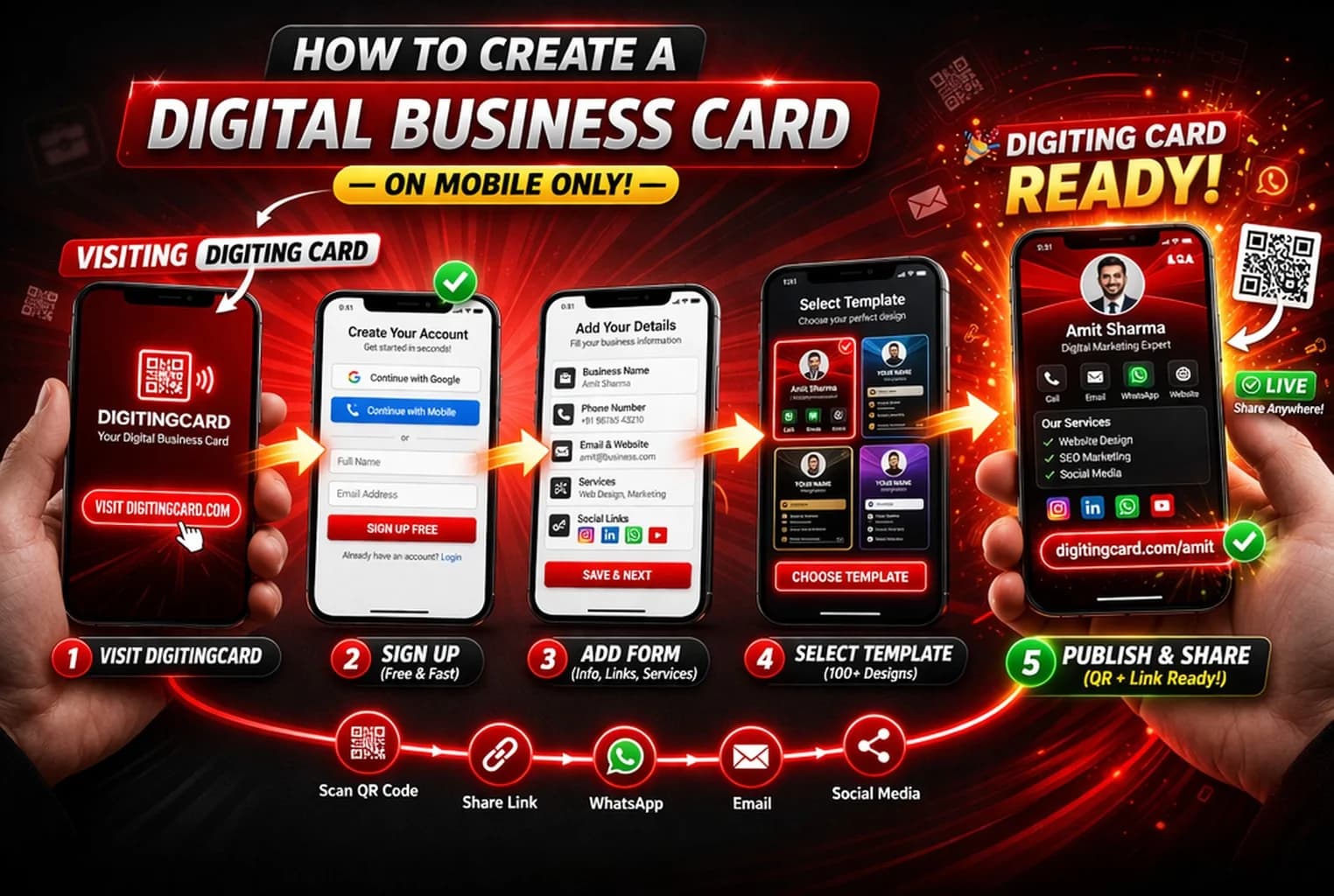
Quick answer
To create a digital business card, choose a clean template, add your contact details, include useful action buttons, preview it on mobile, publish it, and share it using a link, QR code, WhatsApp, or NFC card.
What is a digital business card?
A digital business card is an online version of a visiting card. It helps you share your contact details, business information, location, links, and social profiles using one simple link or QR code.
Unlike a printed card, it can be updated anytime. If your phone number, business name, role, service list, or website changes, you can edit the card without reprinting anything.
You may also hear it called a digital business card, online business card, smart business card, or QR business card. The purpose is the same: make contact sharing easier and more useful on mobile.
Why people prefer digital business cards
Digital business cards fit the way people already communicate today. Most follow-ups happen through WhatsApp, phone calls, direct messages, email, or online links. A digital card works naturally in all these situations.
- Faster than typing your details manually
- Easy to share on WhatsApp, SMS, email, and social media
- Give people a vCard contact-saving option on compatible phones
- You can update your details anytime without reprinting
- Works with QR code, link sharing, and NFC cards
How to create a digital business card
1. Choose a simple mobile-friendly design
Start with a clean layout that is easy to read on mobile. Your digital business card should show your name, business identity, and main contact action clearly.
- Avoid cluttered designs
- Use readable fonts
- Keep strong contrast
- Make call and WhatsApp buttons easy to find
2. Add your key business details
Add only the details people need to understand who you are and contact you quickly. Do not overload the card on the first setup.
- Full name
- Business name
- Phone number
- WhatsApp number
- Email address
- Website or portfolio
- Short business description
3. Add useful action buttons
A good digital business card should help people take action immediately. Add buttons that match how your customers usually contact you.
- Call button
- WhatsApp button
- Save contact button
- Website or portfolio link
- Google Maps location
- Social media links
4. Preview the card on mobile
Most people will open your digital card on a phone. Before sharing it, test how it looks and works on a real mobile screen.
- Check text readability
- Test all buttons
- Open every link
- Check image quality
- Make sure the card loads quickly
Want to create your card quickly?
Start with a simple design, add your details, and publish your digital business card in minutes.
Create your cardWhat details should you add?
Start with the details people need to trust you and contact you quickly. You can always add more sections later.
- Name and professional photo
- Business name and role
- Phone and WhatsApp contact
- Email address
- Website, portfolio, or catalogue link
- Business location or service area
- Social media links
- Short introduction or service summary
For better results, keep your first screen focused. Your name, business identity, and main contact action should be visible quickly.
Real use cases for digital business cards
For small businesses
Use the card on WhatsApp, shop counters, flyers, packaging, and local customer follow-ups.
For freelancers
Share your contact details, portfolio, services, and social proof in one link.
For sales professionals
Send your card after calls, meetings, demos, and customer inquiries to make follow-up easier.
For local service providers
Add WhatsApp, call, location, services, and timings so customers can reach you quickly.
Common mistakes to avoid
The goal is not to add everything. The goal is to make your card useful, readable, and easy to act on.
- Adding too much information on the first screen
- Using small text that is hard to read on mobile
- Not testing call, WhatsApp, and website links
- Using low-quality images or unclear profile photos
- Forgetting to update old phone numbers or business details
- Adding too many buttons without clear priority
Final recommendation
Start with a simple digital business card that clearly shows who you are, what you do, and how people can contact you. Add advanced sections later only when they improve clarity or help customers take action.
Frequently asked questions
How do I create a digital business card?
Choose a template, add your contact details, include useful action buttons, preview the card on mobile, publish it, and share it using a link or QR code.
Can I create a digital business card for free?
Yes. You can start with a free digital business card and upgrade later if you need more features, styles, sections, or business tools.
What should I add to a digital business card?
Add your name, business name, phone number, WhatsApp, email, website, location, social links, and a short business description.
Is a digital business card better than a printed card?
A digital card is useful for clickable actions, updates, QR sharing, and online follow-up. A printed card is useful for a physical handoff, and the two can work together when a printed QR opens your digital profile.
How can I share my digital business card?
You can share it through WhatsApp, QR code, SMS, email, social media bio, printed material, NFC card, or direct link.
Ready to create your digital business card?
Create your card, add your details, and start sharing it on WhatsApp, QR code, social media, and direct messages.